

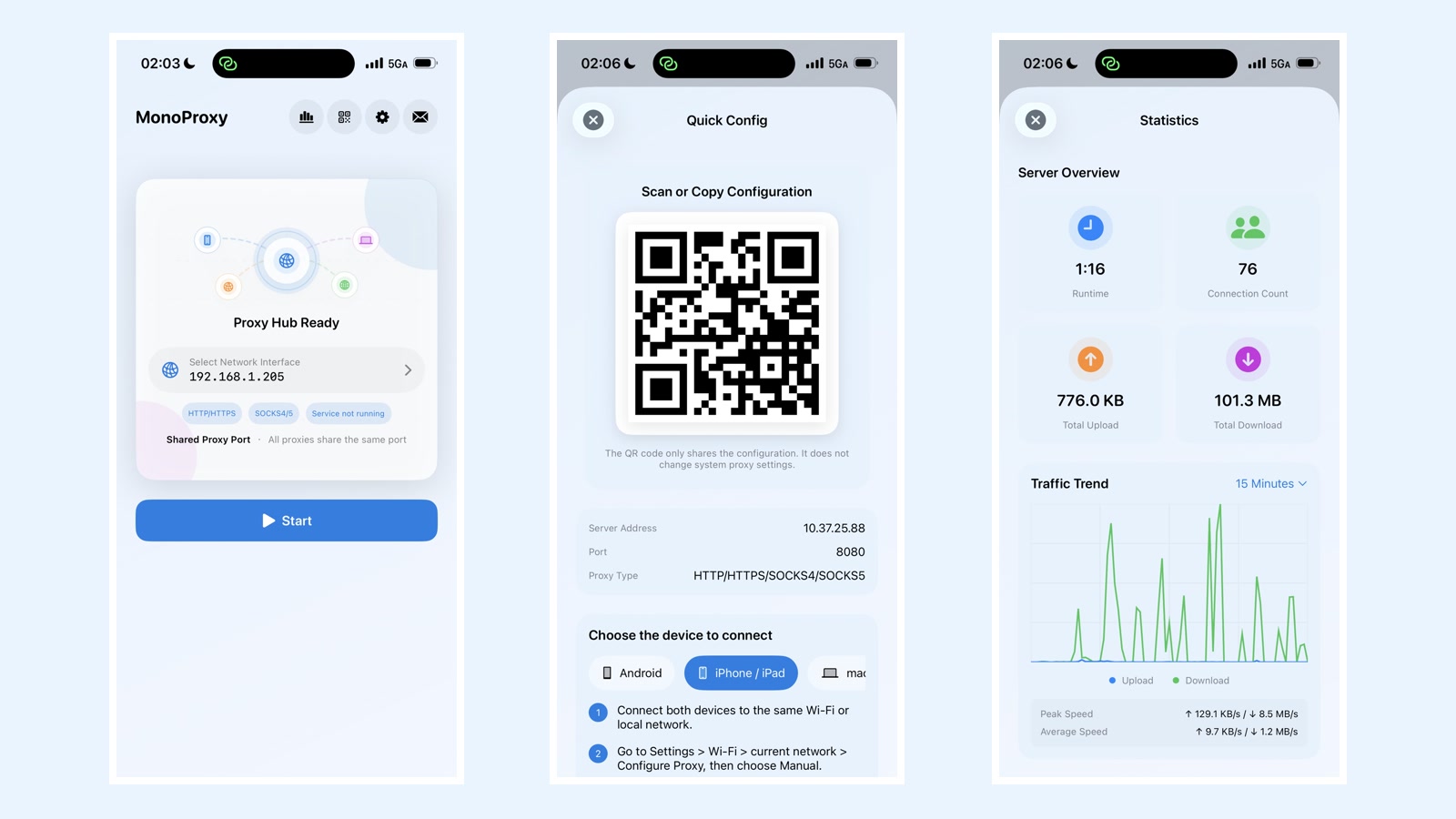
The most useful proxy in a test setup is often not a server in a data center. It is the endpoint already sitting beside the laptop, tablet, console, or development device that needs a route.
MonoProxy turns an iPhone into that local endpoint. Nearby clients connect directly to the phone over the current network; the app does not send the connection through a MonoWare relay. The setup is small enough for a temporary lab, but it still exposes the status and controls needed to understand what is happening.
This guide follows the path that works best in practice: choose the reachable interface, start the listener, configure one client, and verify real traffic before adding more devices.
What MonoProxy does, and what it does not do
MonoProxy is a forward proxy for devices and applications that let you enter a proxy host and port. One listener supports:
Swipe horizontally to see all columns
| Client setting | Use it for | Notes |
|---|---|---|
| HTTP proxy | Normal HTTP requests | Proxy-specific headers are removed before forwarding |
| HTTPS proxy | HTTPS through CONNECT | TLS stays between the client and destination |
| SOCKS4 / SOCKS4a | Older clients | No password authentication in the SOCKS4 protocol |
| SOCKS5 | General TCP clients | Supports no-auth or username/password mode |
| PAC URL | Systems that accept automatic proxy configuration | The PAC file points the client at the current local endpoint |
It is not a VPN and does not change routing for every app on the iPhone. It also does not decrypt HTTPS. A client must be configured to use the proxy, and both devices must be able to reach each other on the current network.
Start with the network interface
An iPhone may have several addresses: Wi-Fi, cellular, a hotspot, a VPN-created interface, and loopback. The address another device can reach is usually the Wi-Fi or local-network address shared with that device.
On MonoProxy's main screen:
- Open the network interface selector.
- Choose the address on the same Wi-Fi or local network as the client.
- Confirm the shared proxy port.
- Tap Start.
When the listener is ready, the Hub shows the host and port together. HTTP, HTTPS CONNECT, and enabled SOCKS protocols use that same endpoint.
Swipe horizontally to explore the diagram
This diagram could not be rendered. Its source is still available below.
View diagram source
flowchart LR
    A[iPhone running MonoProxy] -->|Same Wi-Fi or LAN| B[Mac or PC]
    A -->|Same Wi-Fi or LAN| C[Phone or tablet]
    A -->|Same Wi-Fi or LAN| D[Test device]
    B --> E[Destination]
    C --> E
    D --> E
If the selected interface disappears because the phone changes networks, choose the new interface and restart the listener. An address copied from yesterday's Wi-Fi is not expected to remain reachable on today's network.
Configure the first client
Open Quick Config from the QR button. The screen shows the server address, port, available proxy types, a QR code, and instructions for the selected client platform.
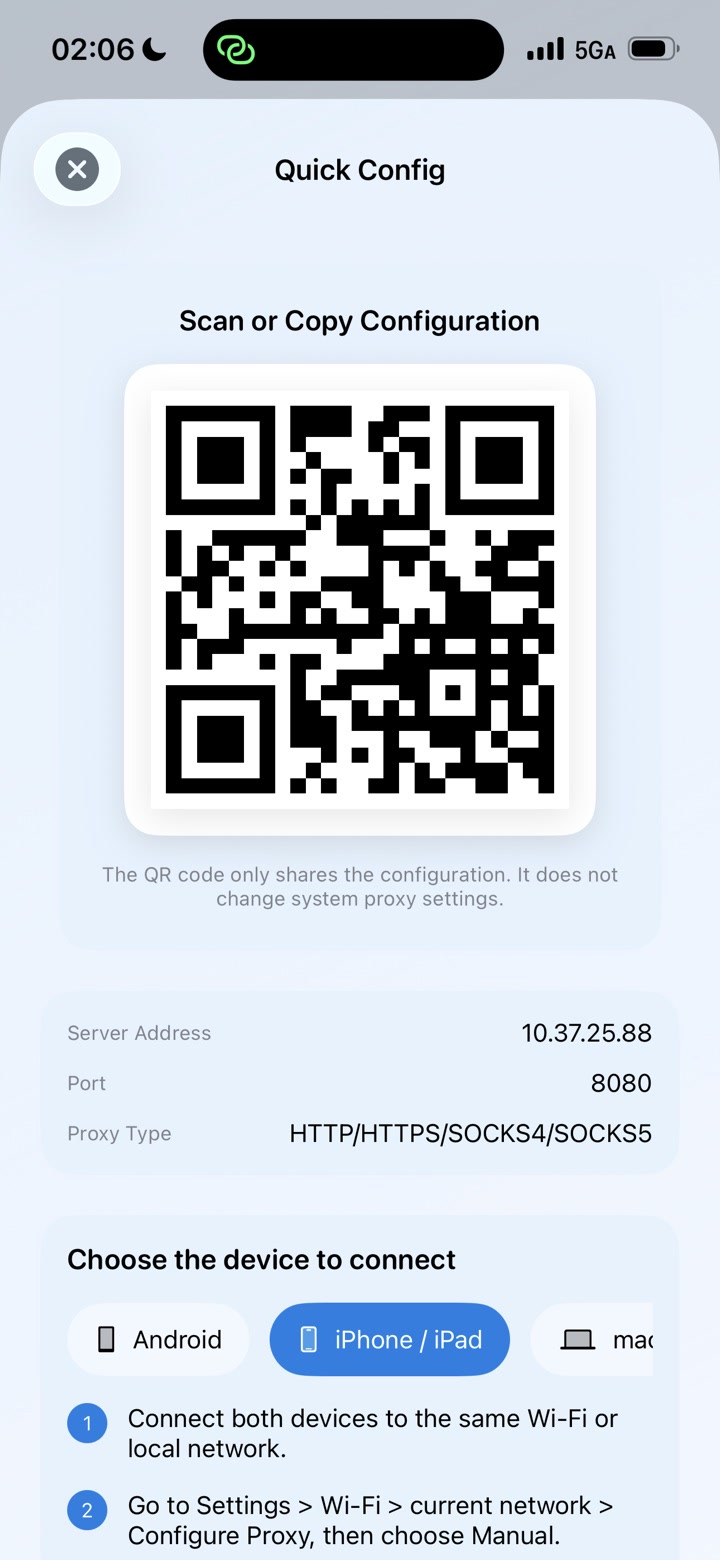
The QR code shares configuration data. It does not silently change system proxy settings on the other device. That distinction is intentional: the client owner can inspect the endpoint before applying it.
For a typical Wi-Fi proxy setup:
- Connect the iPhone and client to the same network.
- On the client, open the current network's proxy settings.
- Choose manual configuration.
- Enter the host and port shown by MonoProxy.
- Save, then open a page or run the application you want to test.
Quick Config can also produce explicit HTTP, SOCKS4, SOCKS5, PAC, and PAC URL forms. Formats that can carry credentials hide them by default. Revealing or sharing a configuration that contains a password requires an extra confirmation, and sensitive clipboard entries use a shorter expiration. PAC files do not embed proxy credentials.
The MonoProxy product site links to platform-specific macOS and Windows instructions when a system setting is hard to find.
Pick the protocol from the client, not from habit
Use HTTP/HTTPS proxy settings when the operating system or application has dedicated web-proxy fields. Most browsers and many development tools work naturally with this model. HTTPS uses CONNECT, so MonoProxy relays encrypted bytes without installing a root certificate.
Use SOCKS5 when the client has a SOCKS setting or when a tool needs a generic TCP proxy. SOCKS5 also supports proxy username/password negotiation. SOCKS4/4a remains available for older software, but it should not be selected when authentication is required because the protocol has no compatible password mechanism.
The shared port means you do not need one port number for HTTP and another for SOCKS. MonoProxy reads the opening bytes and routes each connection to the correct handshake. The configuration still has to name the right proxy type because the client decides which handshake to send.
Verify three states in order
"The service started" and "my traffic is using it" are different claims. MonoProxy keeps them separate:
- Listener ready means the iPhone successfully opened the selected address and port.
- Client seen means another device reached that listener.
- Traffic verified means bytes actually crossed the proxy.
This ordering makes troubleshooting faster. If the listener is not ready, look at the selected interface or port. If no client appears, look at Wi-Fi isolation, the client host/port, or local-network reachability. If a client appears but traffic stays at zero, inspect the selected proxy type, authentication, and the application's own proxy support.
The Statistics view shows runtime, connection count, upload and download totals, a traffic trend, and peak and average transfer rates.
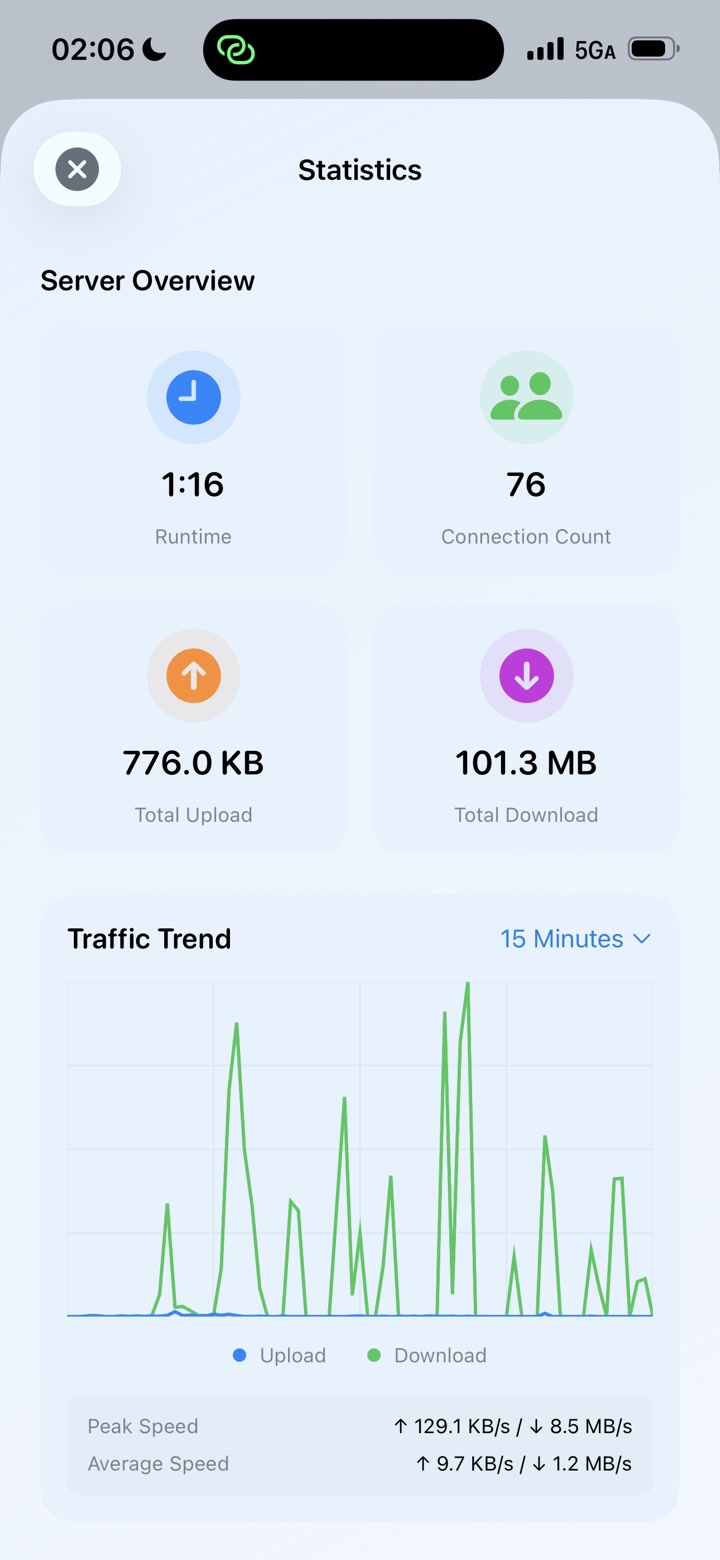
For a more structured check, the Diagnostic Center evaluates the listener, selected interface, client presence, traffic, and security events separately. It also counts authentication failures, rate-limited attempts, access-policy denials, connection-limit rejections, failed sessions, and timeouts.
Add security before adding more devices
A home or office LAN is not automatically a trusted boundary. Before sharing the endpoint broadly, decide which controls fit the network:
- Authentication protects HTTP, CONNECT, and SOCKS5 access with a proxy username and password.
- Private clients only rejects addresses outside private or local ranges.
- Allow and block rules accept IPv4/IPv6 addresses and CIDR ranges.
- Per-client capacity limits how many simultaneous connections one client can hold.
Authentication is useful, but Basic proxy credentials are encoded rather than encrypted. Use them on a network you control. When authentication is enabled, do not advertise SOCKS4 as a secured option; MonoProxy rejects it because SOCKS4 cannot perform the configured password exchange.
Start with one client, verify it, then add the next. This makes an access-rule mistake obvious and avoids debugging several devices at once.
PAC sharing for repeatable web-proxy setup
A PAC file is useful when a client accepts an automatic configuration URL or when the same endpoint needs to be applied repeatedly. MonoProxy can serve /proxy.pac from its active listener and show a QR code for the PAC URL.
If the service is stopped when PAC sharing begins, MonoProxy prepares a listener on the selected local interface so the other device can download the file. The listener must remain reachable while the client fetches the URL. Credentials are deliberately excluded from the PAC body; the client provides them when prompted.
PAC is configuration, not discovery magic. The other device still needs a path to the iPhone, and a network change can invalidate the address inside the URL.
A practical troubleshooting path
When a client cannot connect, checking in this order usually isolates the problem without guesswork:
- Confirm both devices are on the same reachable network.
- Confirm the Hub shows the expected local address and port.
- Confirm the client proxy type matches HTTP, HTTPS, or SOCKS.
- Look for the client in Connections or Diagnostics.
- Check authentication and access-policy rejection counters.
- Generate one simple request and watch for traffic.
- Only then investigate the destination service.
That order prevents a destination outage from being confused with a local configuration mistake.
Stop the listener when the job is done
MonoProxy is designed to make its active state visible. When the test, transfer, or temporary setup is finished, stop the service from the main Hub. If the phone moves to a different network, review the selected interface before starting again.
The useful part of a local proxy is not merely that a port opens. It is being able to hand a nearby device one endpoint, see the connection arrive, verify the bytes, and close the path when the work is over. That is the workflow MonoProxy keeps on the iPhone.