
The most useful first action in an audio analyzer is not always "allow microphone access."
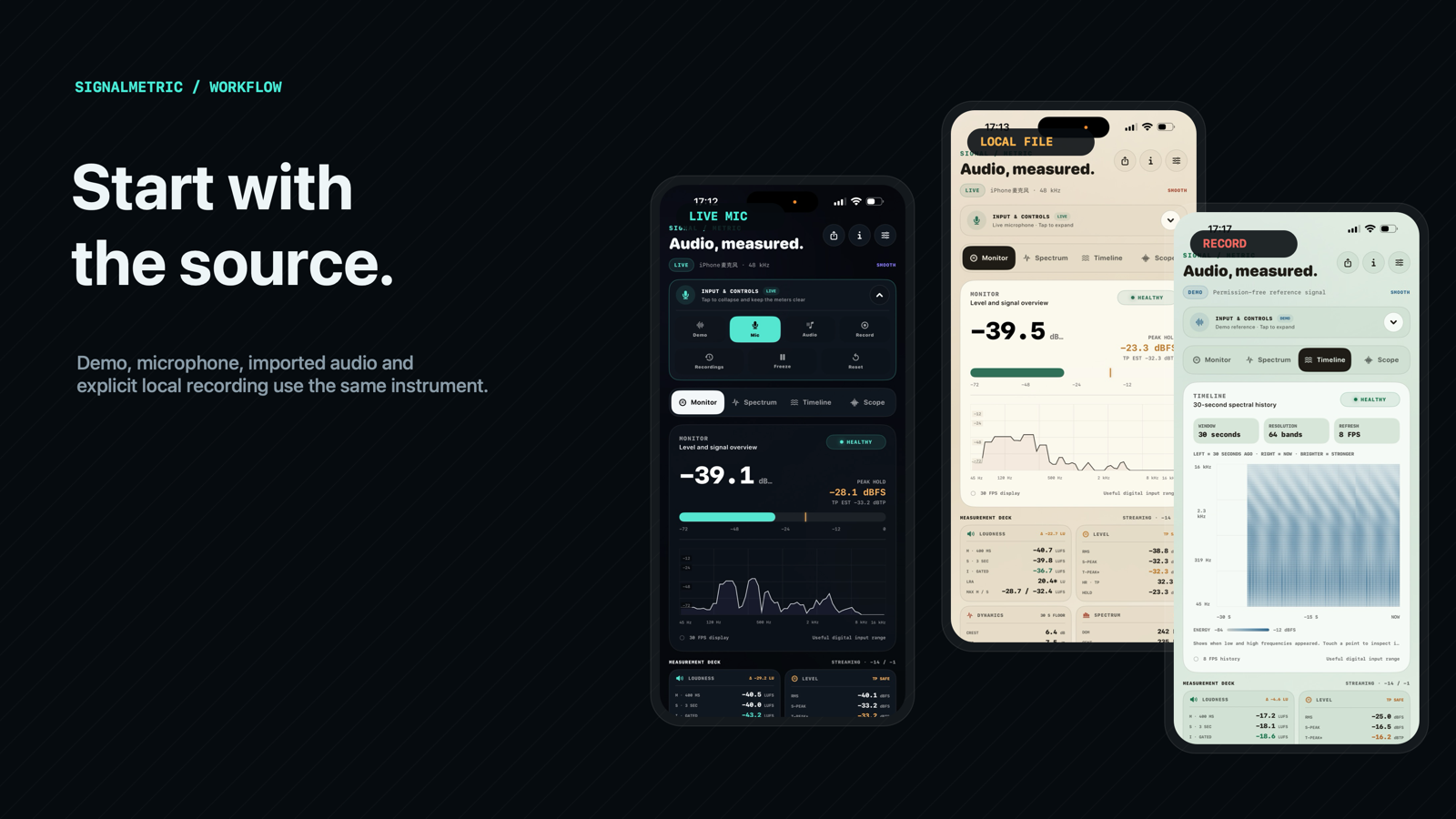
Sometimes you want to learn the instrument before you point it at a source. Sometimes you have a file that already contains the problem. Sometimes you need to record a quick reference and inspect it later. SignalMetric keeps those cases separate, then brings them back to the same four workspaces.
This is a practical path through a session: start without permission, move to a real source when you are ready, then keep only the audio you explicitly choose to keep.
Swipe horizontally to explore the diagram
This diagram could not be rendered. Its source is still available below.
View diagram source
flowchart LR
    A[Open SignalMetric] --> B{Choose a source}
    B --> C[Demo]
    B --> D[Live Mic]
    B --> E[Open local audio]
    B --> F[Tap Record]
    C --> G[Monitor, Spectrum, Timeline, Scope]
    D --> G
    E --> G
    F --> H[Visible local recording state]
    H --> I[Local M4A history]
    I --> G
Begin with Demo when the question is "what am I looking at?"
Demo is intentionally permission-free. It gives the instrument a reference signal so you can move through the dashboard without creating an audio file or granting microphone access.
Start in Monitor. It is the fastest way to understand the app's visual language:
- the main level area shows RMS dBFS, Sample Peak, True Peak estimate, and headroom;
- the meter surface groups loudness, dynamics, spectrum, musical, and signal-health readings;
- the source controls make it clear whether you are using Demo, Mic, a file, or a recording;
- the workspace selector keeps Monitor, Spectrum, Timeline, and Scope close enough to compare without restarting a session.
Do not feel obliged to read every value on the first screen. Pick a question. "How close is this source to the digital ceiling?" is a Monitor question. "Where is that narrow whistle?" is a Spectrum question. "When did the low end change?" belongs in Timeline.
The Demo signal is useful for learning how the views relate, but it is still a reference source. It is not a microphone test and it is not a substitute for a real file you need to inspect.
Use Live Mic for an immediate local reading
When you tap Mic, iOS requests permission. After permission is granted, SignalMetric configures a measurement-oriented input session and begins analyzing microphone buffers in memory.
Normal Live Mic mode is intentionally not a recording mode:
- there is no file progress bar;
- microphone samples are discarded after the current analysis frame;
- the app does not upload the source;
- backgrounding stops the microphone graph rather than leaving capture running.
That separation is useful in a real room. You can walk around a studio, check a spoken setup, inspect an instrument's spectrum, or compare a few source positions without accidentally creating a pile of recordings you did not ask for.
Begin with the response profile that matches the source:
Swipe horizontally to see all columns
| Profile | Use it when |
|---|---|
| Fast | You want transient and speech movement to reach the display with minimal visual lag. |
| Balanced | You need a stable general-purpose view for music or broad inspection. |
| Smooth | You are watching a noisy or sustained environment and want calmer visual motion. |
These profiles affect display smoothing. They do not rewrite the raw RMS, peak, loudness, or diagnostic values. A preference for a calmer trace should not quietly change the number you are measuring.
Let the workspace follow the observation
Switching workspace should feel like changing instruments on the same bench, not like opening four separate apps.
Monitor: establish a baseline
Monitor is where a session starts. Confirm the signal is present, then look at level and headroom before you decide whether more analysis is necessary. If the app reports a hot input or clipping, the immediate problem is usually not subtle.
If the source appears healthy but still sounds wrong, move on rather than staring at the rail. A level meter cannot tell you where the energy sits.
Spectrum: inspect frequency with intent
Spectrum displays a 2,048-point FFT as a logarithmic 64-band trace, then calls out a small number of strong local components. Drag across the graph to inspect a frequency. The selected point stays connected to the component readout, including frequency, level, period, nearest note, and any supported harmonic fit.
Use this view to turn vague descriptions into a concrete next question:
- A persistent narrow line may be a tone or resonance worth isolating.
- A heavy low-frequency region may explain why a source feels crowded even when its overall level is reasonable.
- A high centroid or high roll-off can explain a brighter balance, but it is still evidence to compare, not a universal quality score.
The six component waves are deliberately not sold as an inverse reconstruction of the whole signal. They are the strongest candidate peaks, selected and stabilized so that the view remains useful when energy shifts between nearby bins.
Timeline: find the moment the signal changed
Timeline holds the recent 30 seconds of spectral history. It is the right place to go when a problem appears intermittently: a burst of low end during a phrase, a narrow tone that enters after an edit, or a change in high-frequency texture.
The history is bounded to 240 columns at an eight-frame-per-second publication rate. It is visual evidence for the current session, not a background archive. You can inspect what just happened without silently accumulating a measurement database.
Scope: examine the shape behind the number
Scope presents a triggered 256-bin time-domain envelope. It is especially helpful when a transient feels odd, a waveform appears asymmetric, or a clipping event needs context. The neighboring DC estimate and zero-crossing rate offer additional clues about sample-level behavior.
The waveform is reduced for display, not treated as a full-resolution audio editor. Its job is to make the shape legible at a glance while preserving min/max evidence inside each bin.
Bring in a file when the source is already known
For an existing clip, use the iOS file picker or Open In from another app. SignalMetric accepts audio that AVFoundation can decode and copies the chosen item into a protected, one-item local cache before it starts playback and analysis.
The cache design is intentionally narrow:
- imported items must be local files and are limited to 500 MB;
- importing a newer item removes the older cache entry;
- the app does not build a cloud media library or scan a general music library;
- file playback has its own transport, including play, pause, 15-second skips, elapsed time, total time, and a seekable position.
Playback routes through the main mixer and into the same analyzer used for live input. That means the Spectrum and Timeline are reading the audio that is actually playing, not a disconnected offline summary generated by another subsystem.
Use a file when you need repeatability. Pause on a suspicious moment, seek back, inspect a band, then replay the passage. That is a different workflow from Live Mic, and the UI keeps the distinction visible.
Record only when you want a local artifact
Record is separate from Mic because it changes the privacy and storage contract.
When you tap Record, SignalMetric requests microphone access if needed, starts the same live analysis, and opens an AAC M4A writer. The active state is visibly red and includes elapsed time. Stopping the recording, changing route, receiving an interruption, or moving the app to the background finalizes the file rather than leaving an ambiguous half-recording behind.
Swipe horizontally to explore the diagram
This diagram could not be rendered. Its source is still available below.
View diagram source
sequenceDiagram
    participant You as User
    participant App as SignalMetric
    participant Engine as Audio engine
    participant Disk as Local M4A writer

    You->>App: Tap Record
    App->>Engine: Start input tap and live analysis
    Engine->>Disk: Copy accepted buffers to bounded serial writer
    Disk-->>App: Visible recording duration
    You->>App: Tap Stop
    App->>Engine: Reject new recording buffers
    Engine->>Disk: Drain accepted writes and close file
    Disk-->>App: Final local recording
    App->>App: Open as paused file and add to local history
The writer uses a bounded queue. If storage cannot keep up, the app stops recording rather than allowing memory to grow indefinitely. Once finalized, the M4A appears in local recording history for playback, analysis, sharing, or deletion.
This is why SignalMetric does not describe regular Live Mic as "recording in the background." It is not. A local audio file exists only after you explicitly enter Record.
Share the right thing
SignalMetric has two different sharing actions, because a dashboard image and an audio file are not interchangeable.
- A dashboard share renders the visible instrument as a local PNG. It shares the evidence you are looking at, not audio samples.
- A file share is available for the currently displayed imported or recorded audio. It sends the file only after you invoke the iOS share sheet and choose a destination.
This distinction gives you a simple choice: show someone the measurements, or deliberately hand off the source material.
A small privacy check at the end of a session
SignalMetric does not require an account, include advertising, run analytics, or upload live or imported audio. It is a one-time purchase with no subscription or feature paywall. Preferences such as workspace, response mode, and appearance stay on device. Current-session range and elapsed time are ephemeral rather than becoming a hidden measurement archive.
The optional feedback form is the only network path. It sends the information you enter, plus limited version context, after you submit it. It is not part of audio analysis.
That is the intended rhythm of the app:
- Learn with Demo.
- Inspect Live Mic without generating a file.
- Use a local file when repeatable playback matters.
- Record only when you want to keep a local artifact.
- Share an image or an audio file only when you deliberately choose the destination.
The SignalMetric product guide is the broader map of the instrument, including the four workspaces, source controls, response profiles, and privacy boundary.